
Activating Your Disclosures Page
To activate your Disclosures page follow the steps outlined below or watch the video:
1) Log in to your FYZICAL Hub Account at hub.fyzical.com/

2) In the main menu click on Content, then head to the Pages submenu.

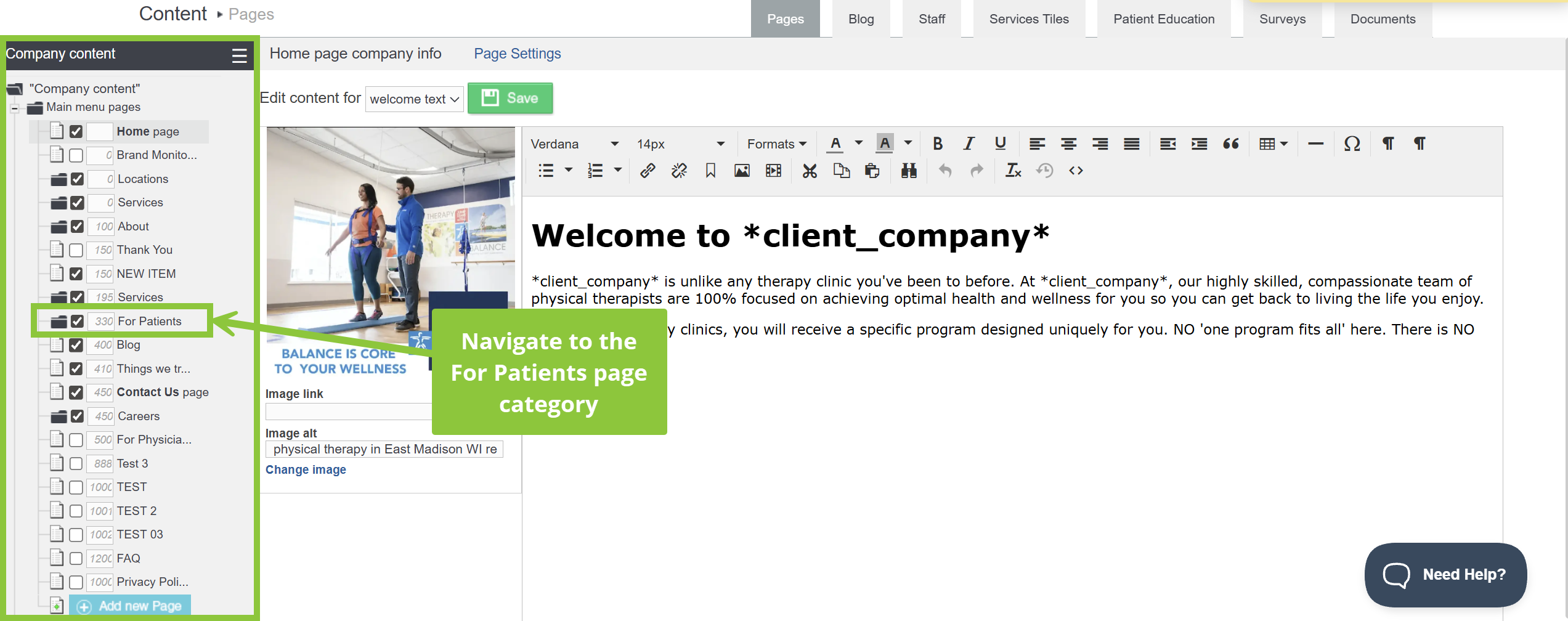
3) On the Left-most side under “Company Content” you’ll see your website’s pages listed. Click on the For Patients page category.
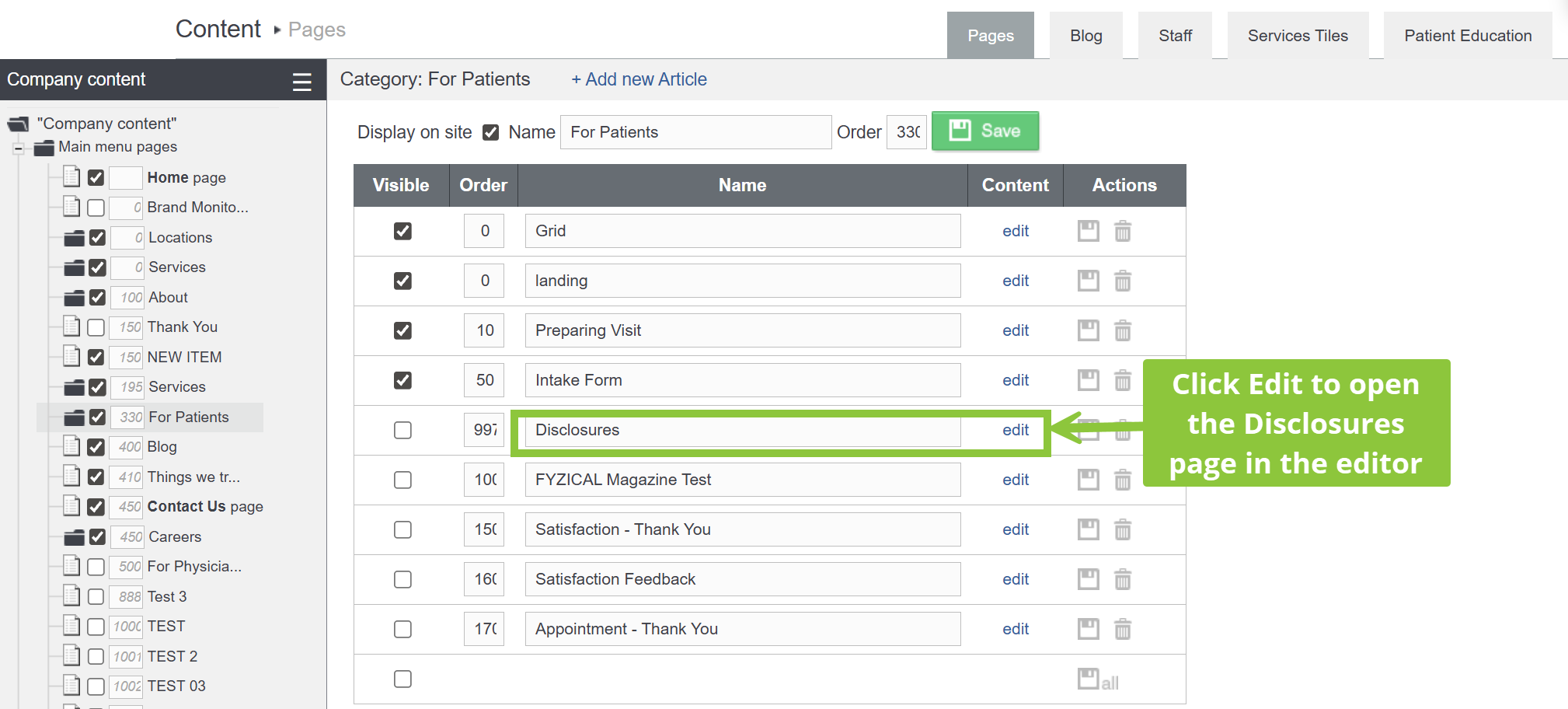
4) On the list of your For Patients pages, click on Edit next to the Disclosures page.
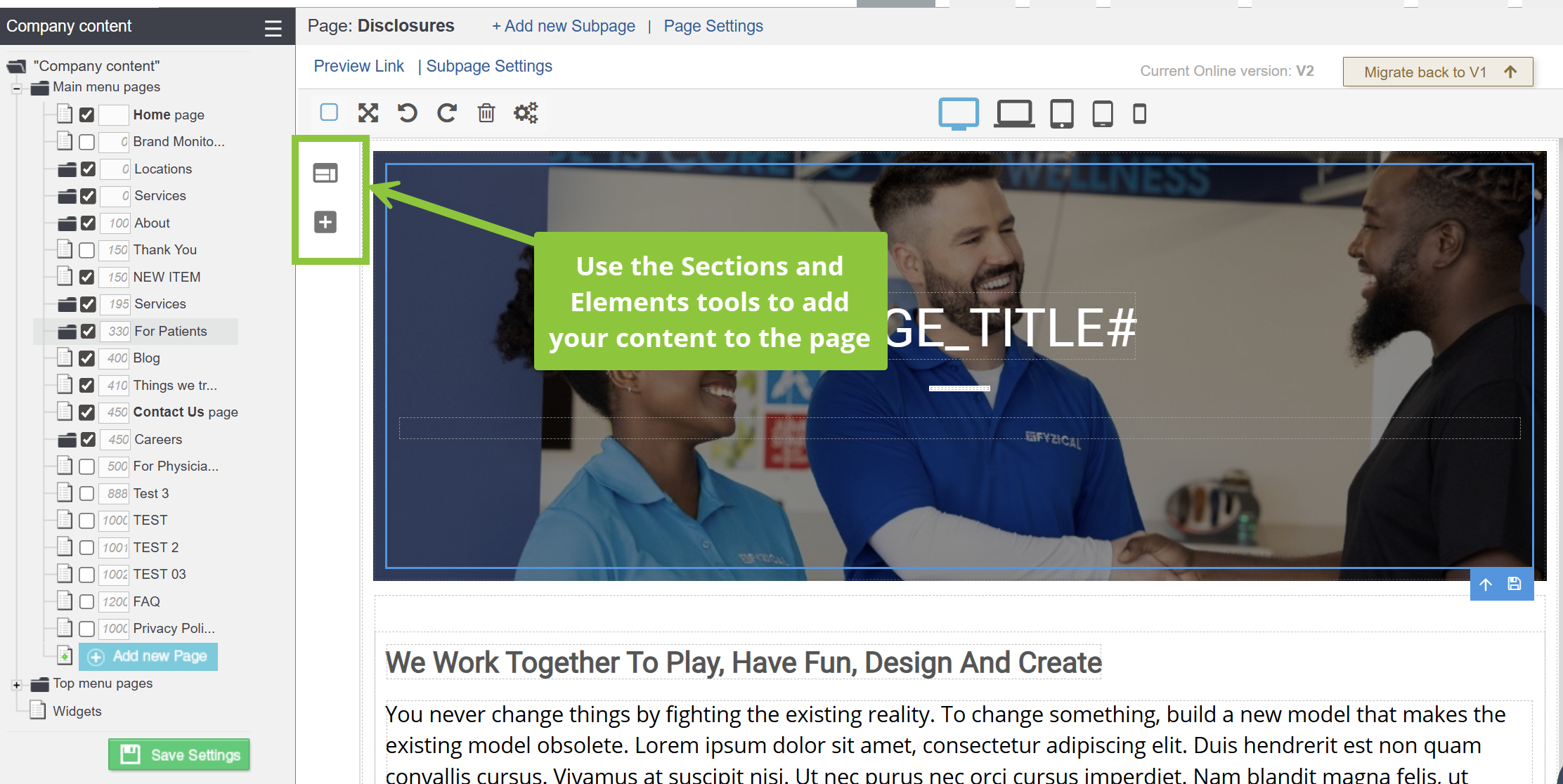
5) On the Disclosures page, use the Sections and Elements tools to add your content to the page. You can type or paste in text, add images, buttons, lists, etc. Your changes will automatically be saved as you progress.
To learn more about editing a webpage check out our guides below:
- Adding text to a page
- Adding images/ videos to a page
- Adding a document or PDF to the page
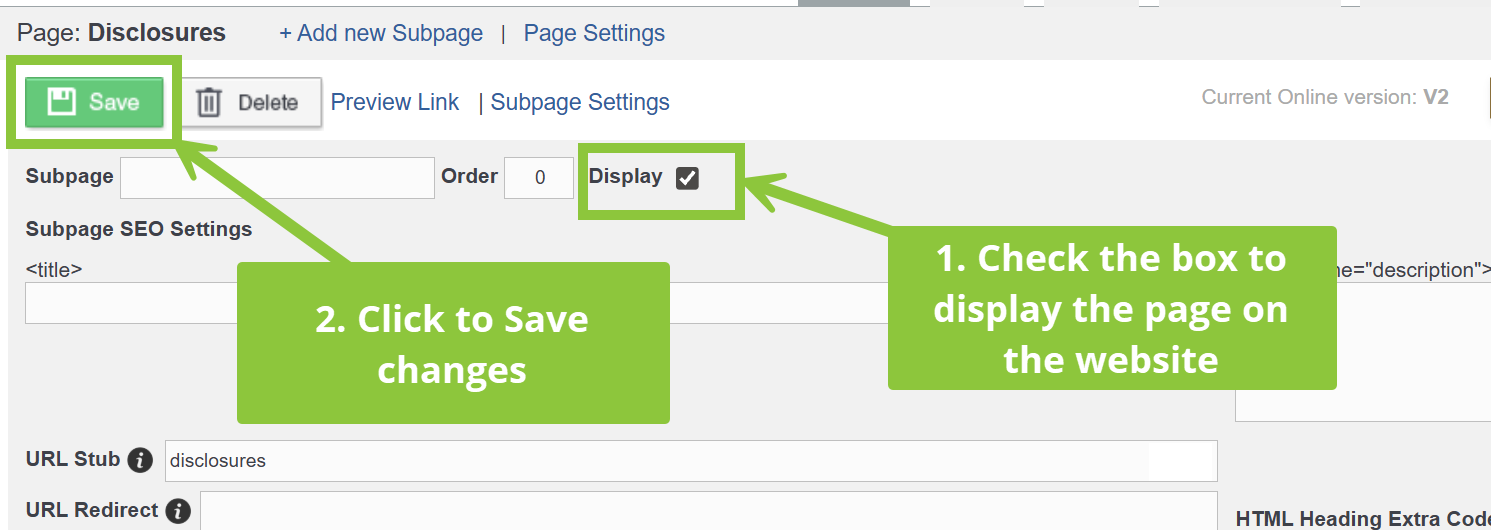
6) Once you’re done editing your page, make sure your page is visible to the public by checking the Display box under Subpage settings. Then, click the green Save button.
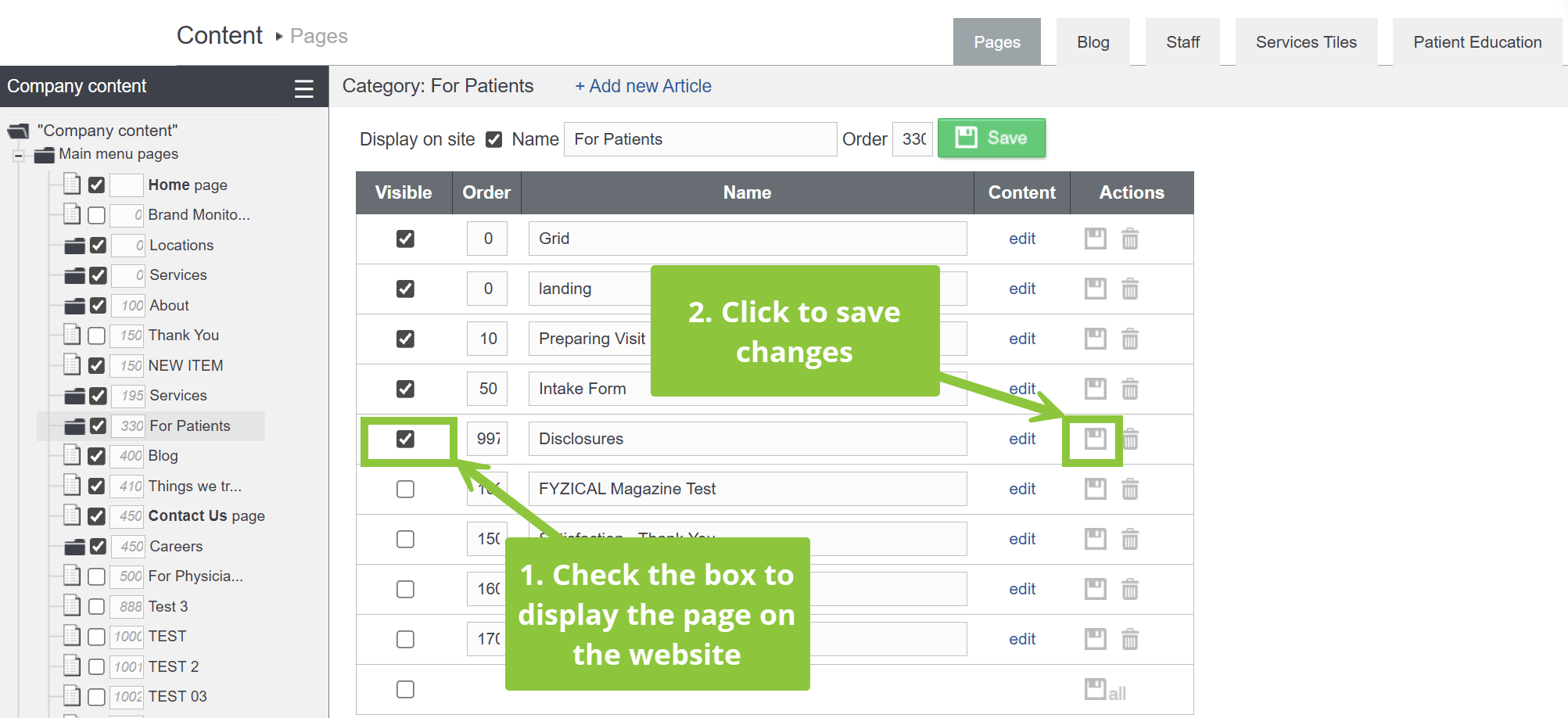
7) Finally, in the Company Content menu on the left, click on the For Patients page category again, and on the list of pages, check the empty box under the Visible column next to the Disclosures page to display the page on the website. Then, click the Save icon on the right to save your changes.
If you have further questions, find the contact link at the top of this page and fill out the short contact form or email us at web@fyzical.com