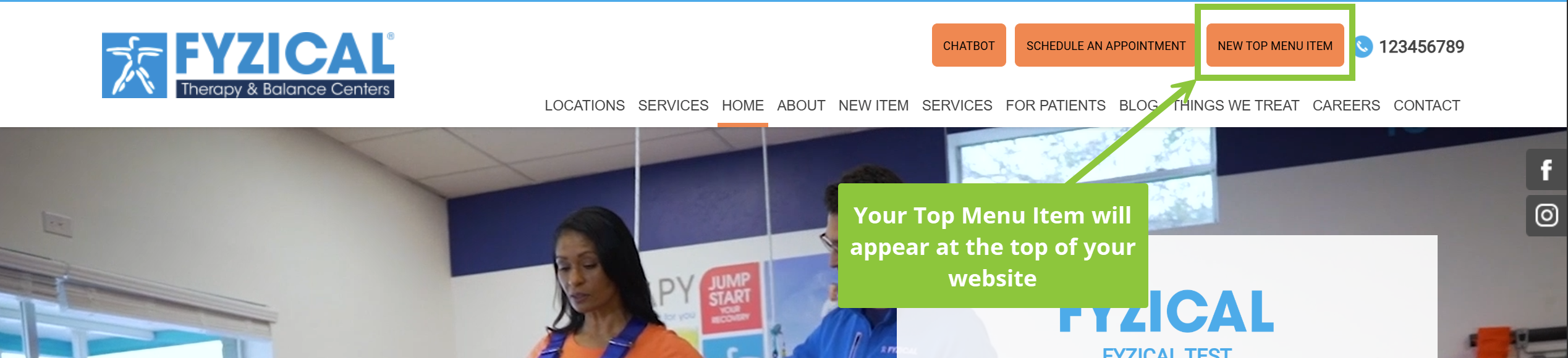
How to Add a Top Menu Button
Do you want to add a payment button, patient education button, or schedule an appointment button at the top of your website? You can add one button to the top of your page above the menu fairly easily.
Two things to keep in mind:
- Please keep your buttons at the top to no more than two. Having too many will clutter up your site, compete with the main menu and will make the button at the top less special.
- Keep the Franchise Opportunity button visible. This is a requirement of FYZICAL HQ. If it is removed, we'll be placing it up again and contact you with the reminder. If it is taken off again, we'll place your website back into review changes mode again where we must approve changes to your website before they go live (you don't want that).
To add a Top Menu Button, you can follow our step-by-step guide below"
1) Log in to your FYZICAL Hub Account at hub.fyzical.com/

2) In the main menu click on Content, then head to the Pages submenu.

3) On the left side of the Page editor, under Company Content, at the bottom open the Top Menu Pages dropdown, and click the blue Add New Page button.
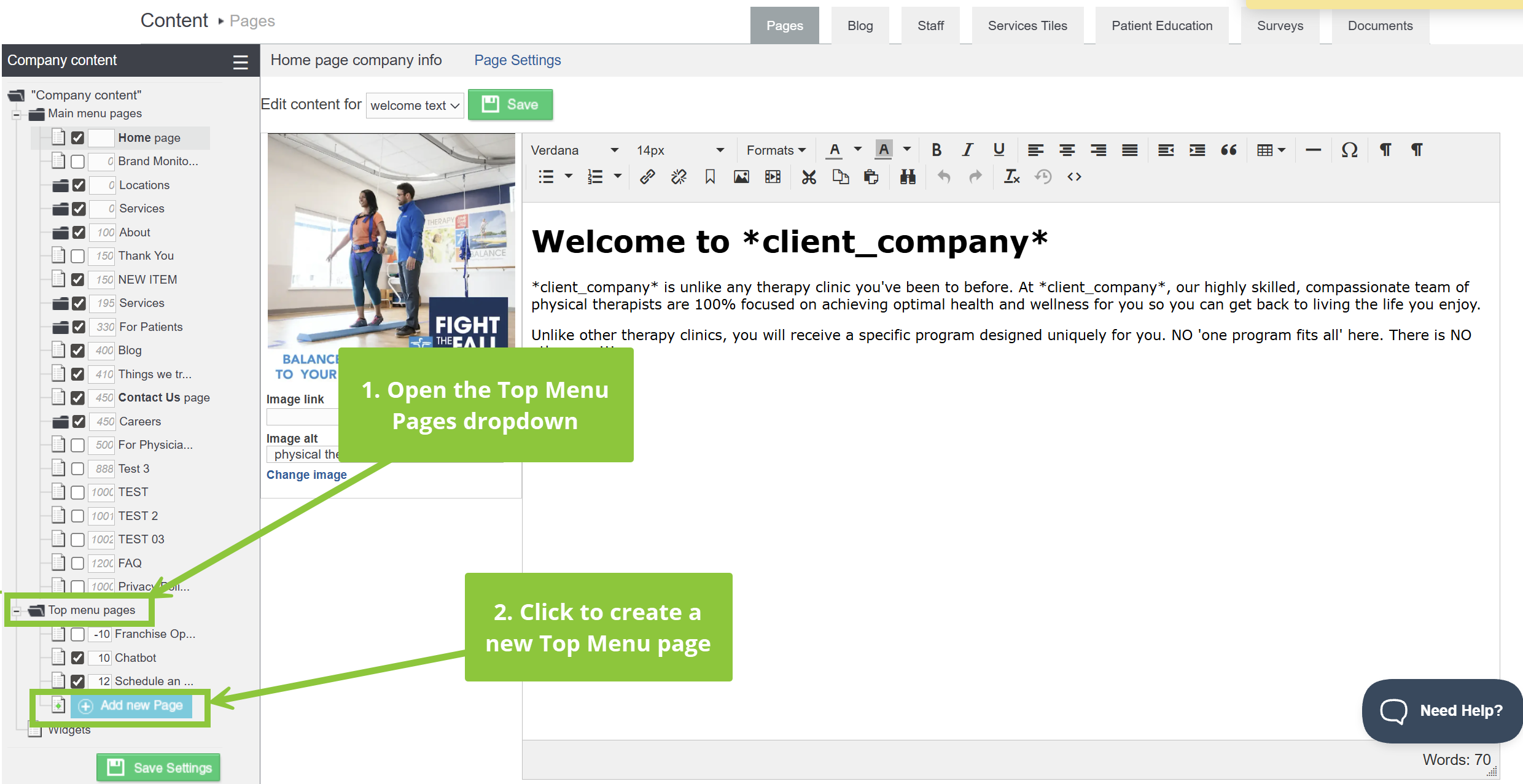
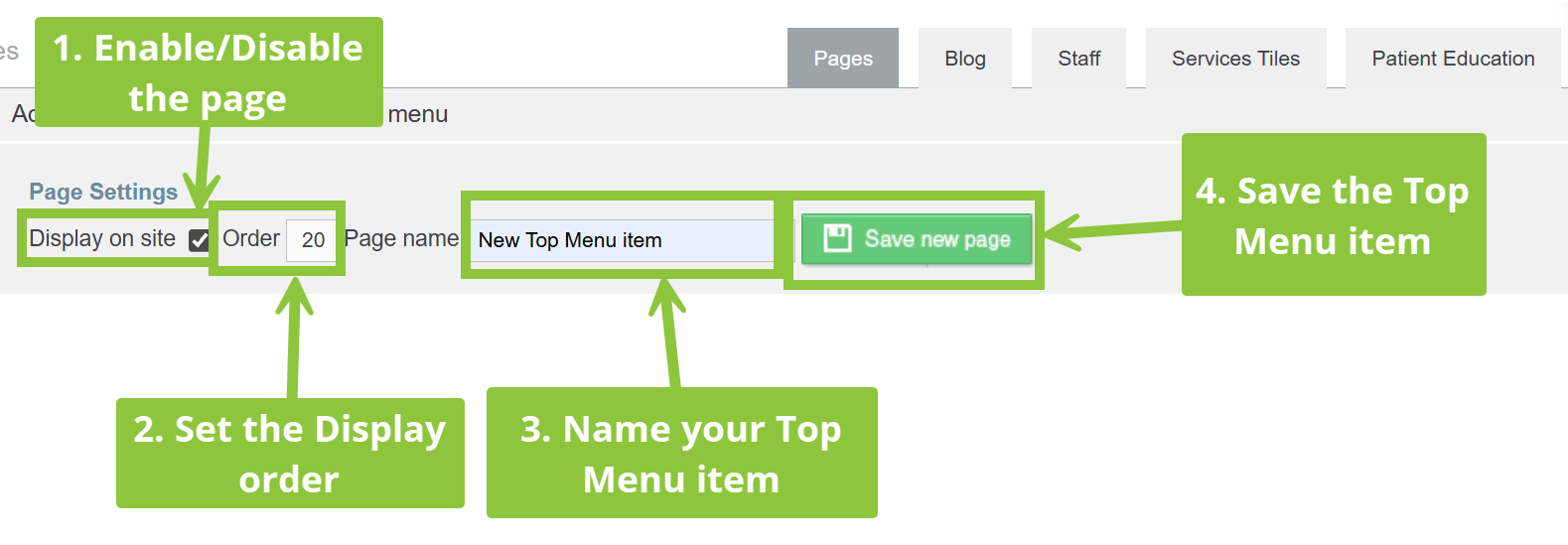
4) When creating your new Top Menu item, you can:
- Enable or Disable the Item from displaying on the website
- Set the display order of the new Top Menu item
- Name your Top menu item
Click the green Save new page button to save changes.
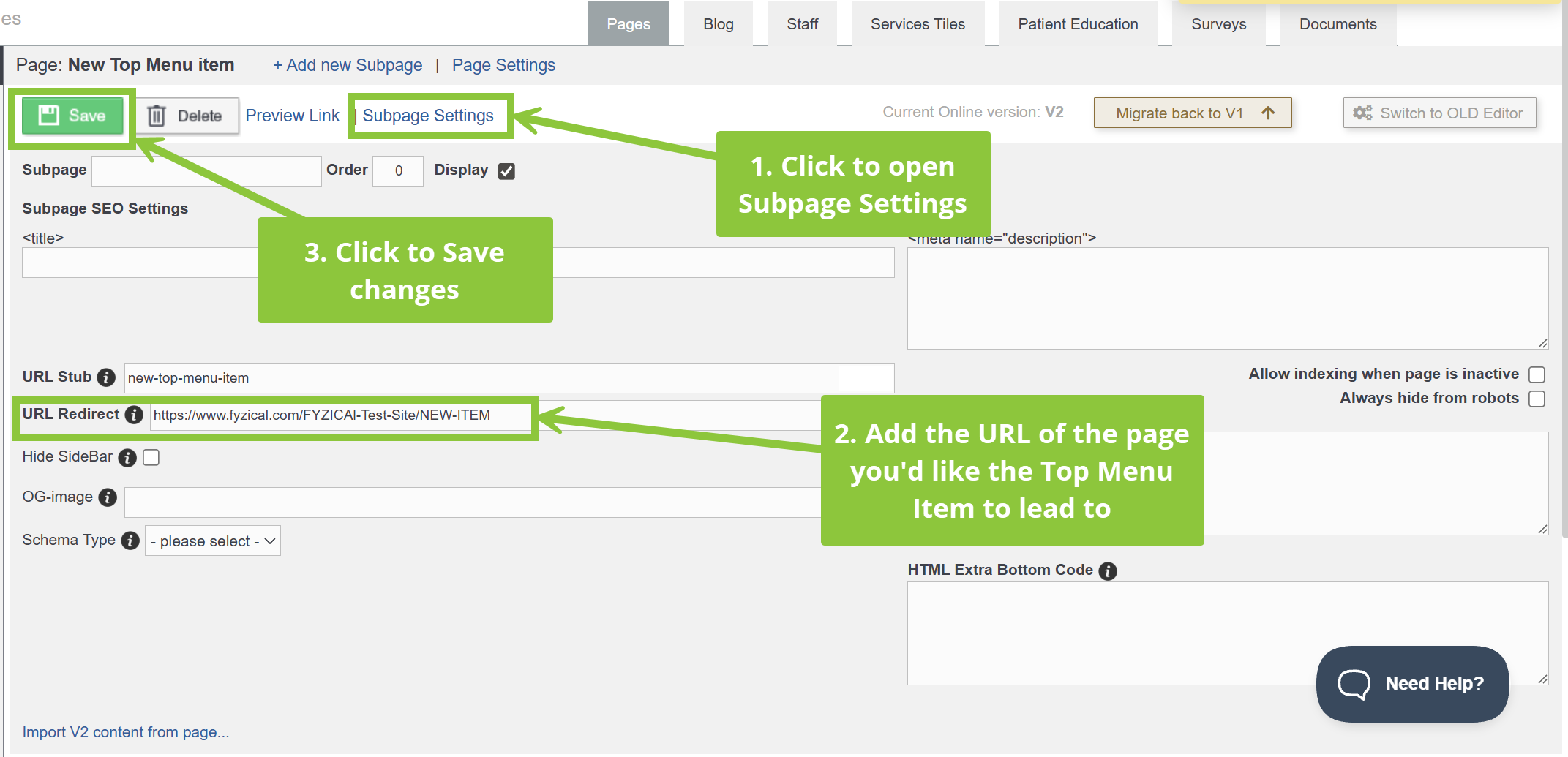
5) Once you have your New Top menu Item, you can either add content to the page you created, just like any other webpage on your website, OR you can redirect it to an already existing page, or even an external page.
To add a Redirect Link, click the Subpage Settings button at the top of the page editor, and paste the URL of the page you’d like the Top Menu item to lead to into the URL Redirect field.
Then, click the green Save button to save your changes.
6) Once you’re done, the new Top Menu item will display at the top right section of your website, and be visible across the website.